
Quick answer: Most "broken" card printers have one of seven problems that you can fix yourself in a few minutes: a ribbon error, a card jam, white lines on the print, faded or wrong colours, printing on the wrong side, the printer showing offline, or a magnetic stripe that will not encode. Work through them in that order before calling for service, and long before buying a new printer. The fixes below apply to most desktop printers, including Evolis, HID Fargo and Finloyd models.
Before anything else
- Note the exact error message or the colour and pattern of the warning light.
- Switch the printer off, wait 30 seconds, switch it on. It sounds basic, but it clears many sensor errors.
- Print the printer's own test card from its menu or software. If the test card is fine, the problem is in your design file or driver, not the printer.
The 7 problems
1. Ribbon error or "ribbon not detected"
Likely causes: the ribbon is installed the wrong way, it has run out, it is the wrong type for the printer, or it is not a genuine ribbon. Many printers, Evolis among them, read a chip on the ribbon to identify it, and refuse ribbons they do not recognise.
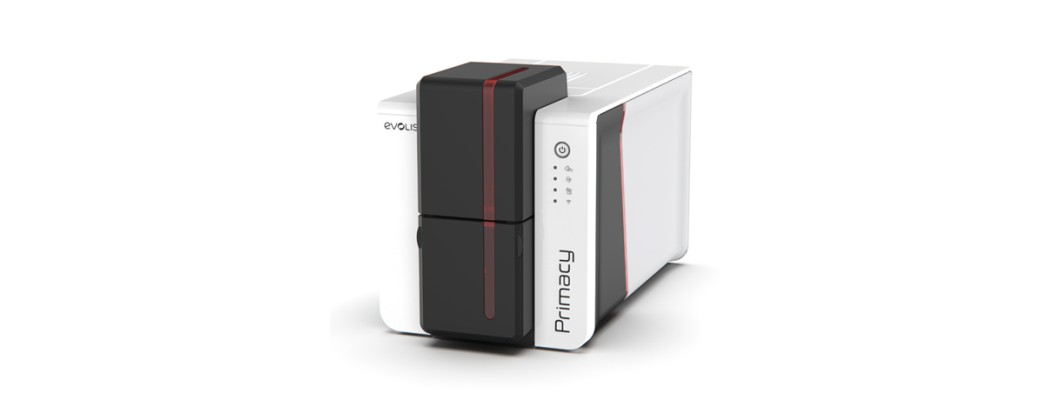
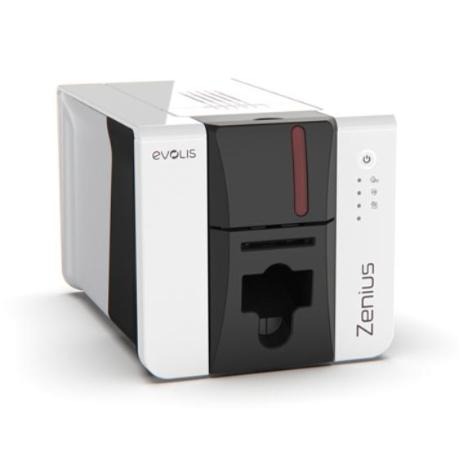
Fix: reinstall the ribbon following the diagram inside the cover, check that it is not finished, and make sure it is the exact model for your printer. For example, a Zenius or Primacy takes ribbons such as the Evolis R3011 YMCKO colour ribbon (SAR 284.63) or the R2011 black ribbon (SAR 102.47); a Fin-CP takes its own Fin-CP YMCKO ribbon (SAR 284.63).
2. Card jam or cards not feeding
Likely causes: cards stuck together, bent cards, wrong card thickness setting, or too many cards in the feeder.
Fix: open the cover and remove the card gently in the direction of travel. Fan the stack of cards before loading so they separate, check the thickness lever or setting matches your cards (standard cards are 0.76 mm), and do not overfill the feeder.
3. White lines or streaks across the print
Likely causes: dust on the cards or the cleaning roller, or dirt on the printhead. A thin white line in the same place on every card usually means a printhead issue.
Fix: run the printer's cleaning cycle with a cleaning card, replace the cleaning roller if it is no longer sticky, and keep cards in their box until use. Our card printer care and printhead cleaning guide shows how. If the line remains after cleaning, the printhead may be damaged; that is a service job.
4. Faded, washed-out or wrong colours
Likely causes: the driver is set for a monochrome ribbon while a colour ribbon is installed, fingerprints or grease on the card surface, the design file in an unusual colour mode, or a ribbon stored somewhere hot.
Fix: check the ribbon type in the printer driver, handle cards by the edges, save designs in RGB, and store ribbons in a cool place. In Saudi summers, a ribbon left in a car or a hot store room can lose quality.
5. Printing on the wrong side, upside down or off-centre
Likely causes: card orientation settings in the driver or design software, or cards loaded the wrong way, which matters for cards with a magnetic stripe or a chip.
Fix: check the orientation (portrait or landscape) and rotation settings, and load chip or stripe cards as the manual shows. Print one test card after each change.
6. Printer offline or nothing happens
Likely causes: USB cable loose, a Windows update changed the default printer, a stuck print queue, or a network printer whose IP address changed.
Fix: reseat the cable, set the card printer as the printer in your design software, clear the Windows print queue and restart the print spooler, and for network printers give the printer a fixed IP address.
7. Magnetic stripe will not encode
Likely causes: the printer has no encoder, plain cards loaded instead of stripe cards, the stripe is on the wrong side, or the coercivity setting (HiCo or LoCo) does not match the card.
Fix: confirm your model has the encoding option, use magnetic stripe cards (SAR 2.28), load them stripe-side as shown in the manual, and match the HiCo/LoCo setting.
Habits that prevent most faults
- Use genuine ribbons and cards made for your model.
- Keep the printer cover and card feeder closed to keep dust out.
- Clean the printer each time you change the ribbon, or on the maker's schedule.
- Do not place it in direct sun or in the airflow of an AC unit.
Quick reference
| Symptom | First thing to try |
|---|---|
| Ribbon error | Reinstall; check ribbon model |
| Card jam | Fan cards; check thickness setting |
| White lines | Cleaning cycle; new cleaning roller |
| Faded colours | Ribbon type in driver; clean cards |
| Wrong side or rotated | Orientation settings; card loading |
| Offline | Cable, default printer, print queue |
| Stripe not encoding | Stripe cards, side, HiCo/LoCo |
When it really is time for a new printer
- The printhead is damaged and the repair costs close to a new printer.
- Ribbons or parts for your model are no longer available.
- Your needs changed: you now need dual-sided printing, encoding or higher security.
- The printer does not have drivers for your current version of Windows.
If you reach that point, compare entry and dual-sided options: the Evolis Zenius 2 (SAR 4,326.30), the Evolis Primacy 2 (SAR 6,831.00), the dual-sided Primacy 2 Duplex (SAR 7,741.80) or the budget Finloyd Fin-CP (SAR 3,643.20).
Still stuck?
Count Express supports card printers across Saudi Arabia from sales and distribution centres in Riyadh, Jeddah and Al Khobar. Send us a photo of the error and a test card, and we will tell you whether it is a quick fix or a service job. Message us on WhatsApp or browse ID card printers.
Always follow your printer's manual. Prices include 15% VAT and may change.
Leave a Comment